Single Sign-On (SSO)
Stay allows logging into the application using the identity provider or AD used by the property. In other words, Stay supports federated single sign-on and can integrate with any identity provider supported by Microsoft Azure AD B2C. This includes any OAuth and SAML-based identity provider. Multiple identity providers can be added for a customer and for each identity provider, a user flow is created in Azure AD B2C. Customers can also opt to enforce signed requests based on public keys, if preferred. This feature will be enabled at the customer level and will be applicable to all properties.
Contact Agilysys to enable this feature. It is mandatory to add or update all user records in the property with a valid email ID.
Stay provides users with a streamlined login experience that guides them through the appropriate sign-in process based on their customer and login configuration in Agilysys Platform:
-
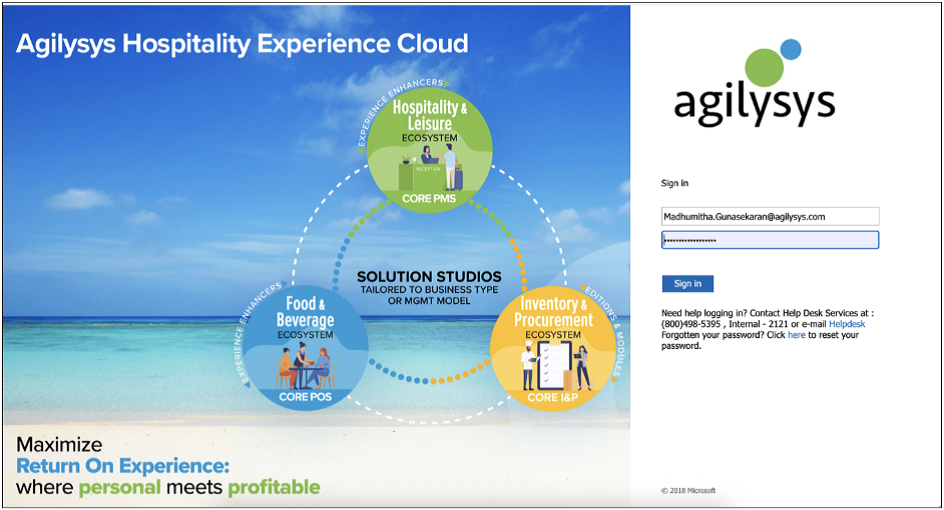
The login screen displays the appropriate logo and visual theme when users access the application.
-
When the entered URL does not include a customer ID, users are prompted to enter the ID before continuing with the login process.
-
The entered customer ID is validated to determine the appropriate region. For customers mapped to multiple regions, users are automatically redirected to the appropriate region to continue signing in.
-
After the customer is identified, the login experience is determined based on whether Single Sign-On (SSO) method is enabled:
-
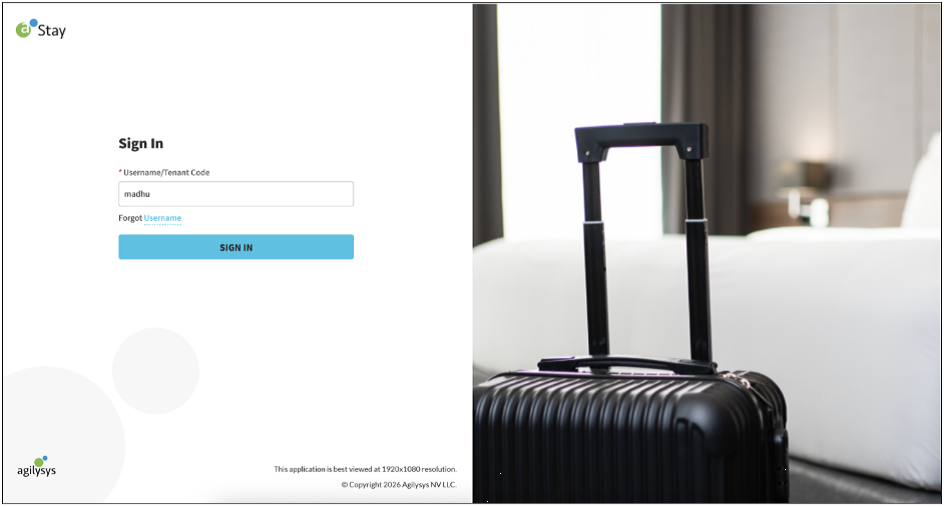
For customers with SSO enabled, users must enter only their username and are redirected to the configured SSO provider for authentication. After successful authentication, users are signed into the application.
-
For customers without SSO enabled, users must enter their username and password to sign in.
-
-
After the user's credentials or SSO authentication are validated, any additional authentication requirements configured for the customer are applied:
-
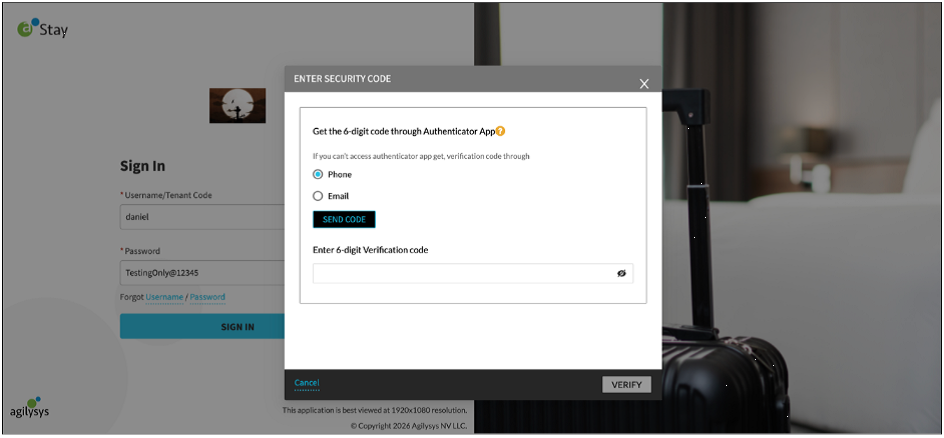
When Multi-Factor Authentication (MFA/2FA) is enabled, users are prompted to enter the required MFA code.
-
When security questions are enabled, users are prompted to answer the configured security questions.
-
-
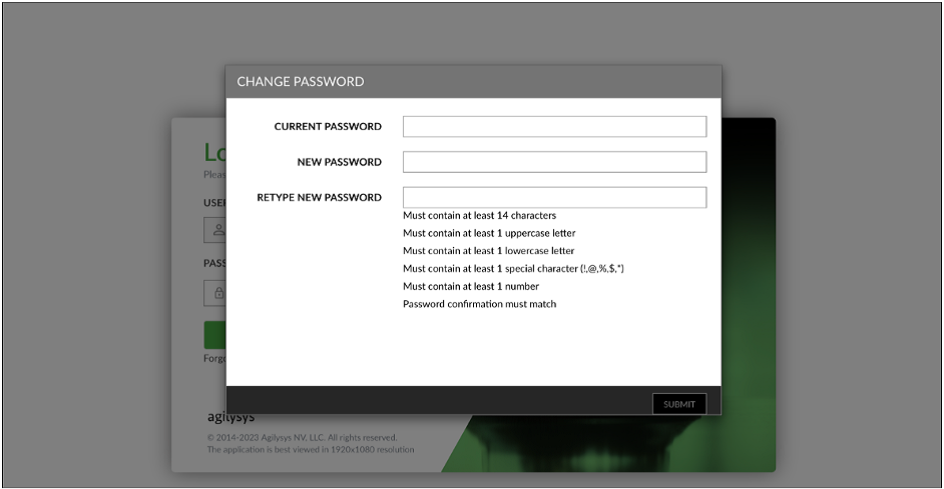
For a first-time login, users are prompted to change their password after completing the required authentication.
-
After all required login validations are completed, the following actions are performed:
-
Service users are directed to the service user home page to select the required tenant. This flow supports service accounts with and without SSO.
-
Business users are directed to the applicable application home page.
-
-
For SSO users with a configured default page, the applicable default page routing is applied after authentication.
-
The updated login experience also covers the following areas and scenarios/workflows:
-
Tenant ID selection
-
Sign In
-
Forgot Username
-
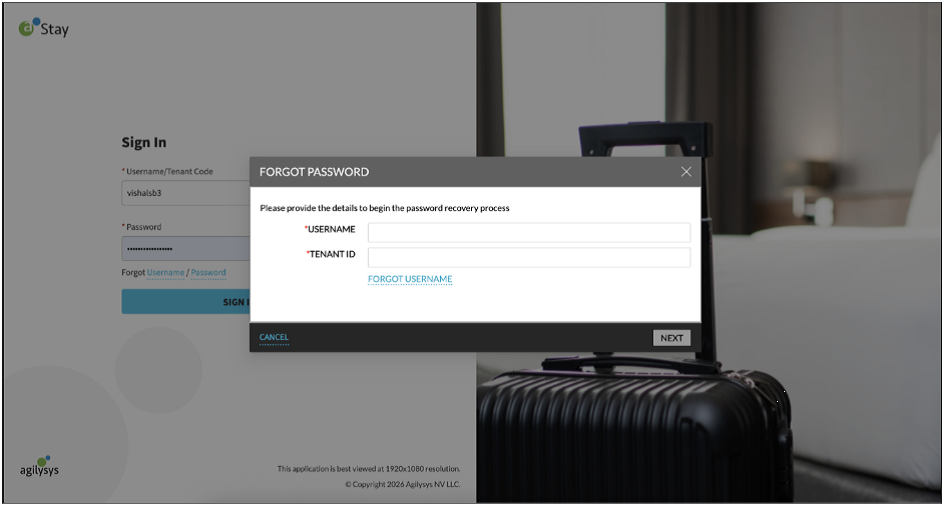
Forgot Password
-
Service accounts
-
Service accounts with and without SSO
-
2FA/MFA
-
Change Password for first-time login
-
Single Sign-On (SSO)
-
SSO with default page routing
-
Multi-region redirection
-
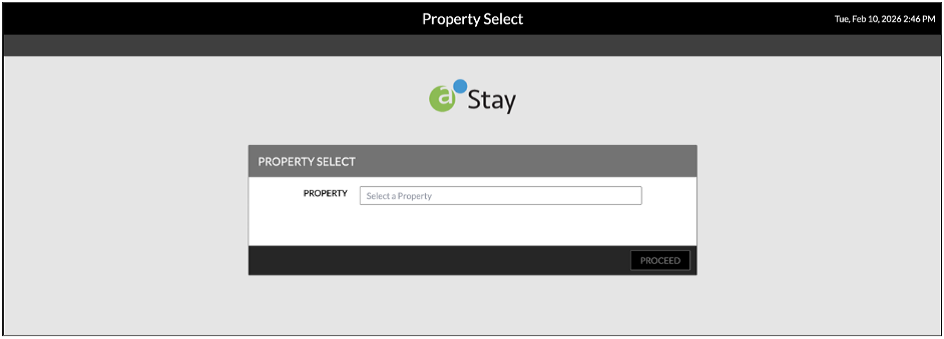
Property Select
-
Concurrent Users
-
Restricted Login
-
Sign Out
-
Manager Login
-
Password Expired
-
Tenant ID Selection
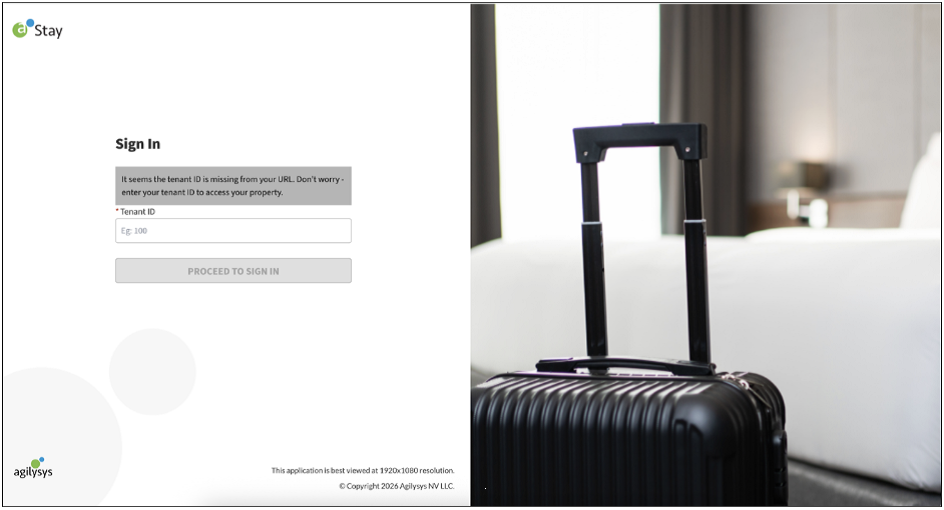
Sign In
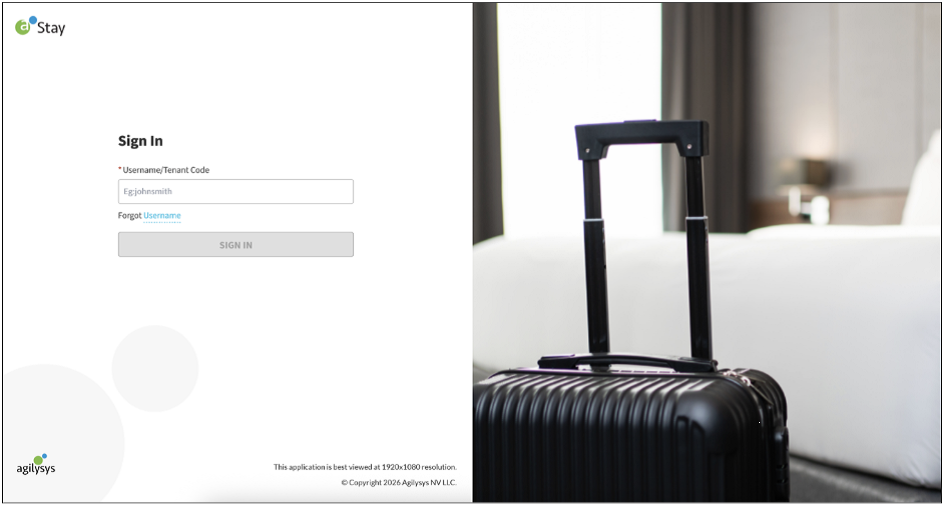
Forgot Username
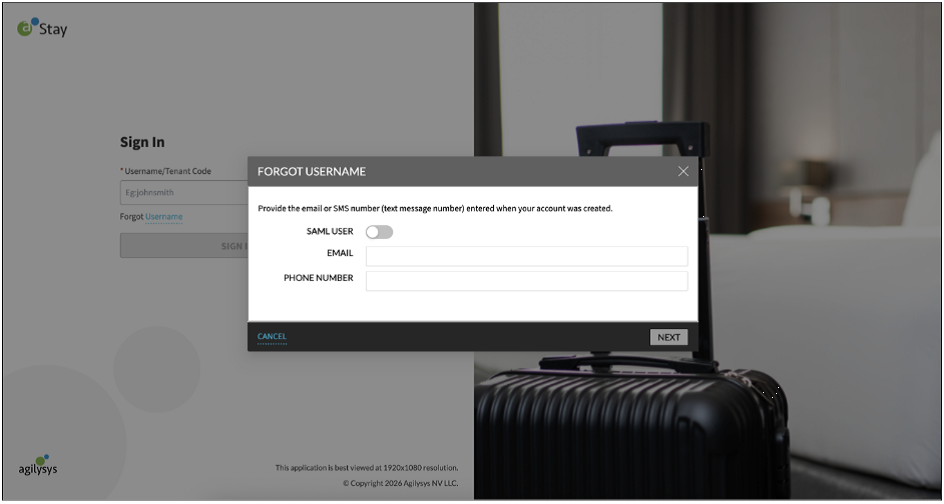
Forgot Password
2FA
Change Password for First Time
Single Sign On (SSO)
Multi-Region Redirect - Property Select
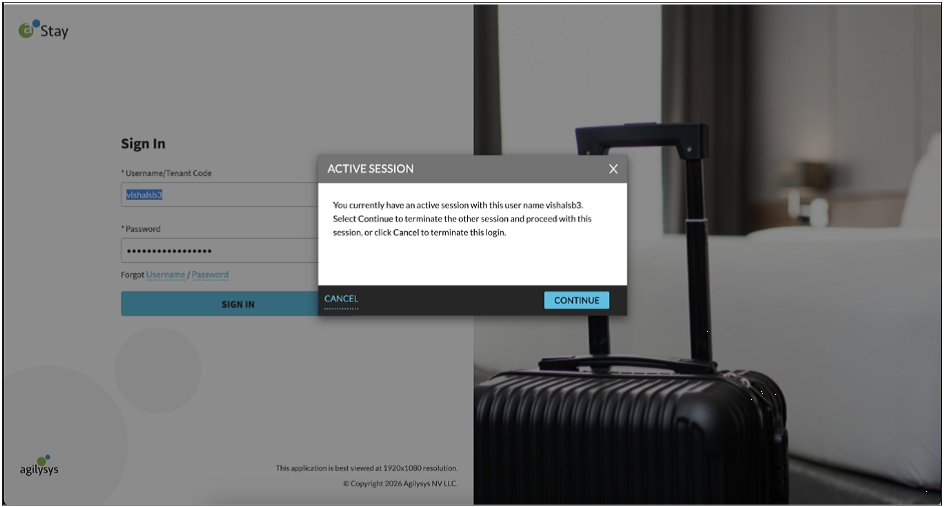
Concurrent Sessions